
Grouping
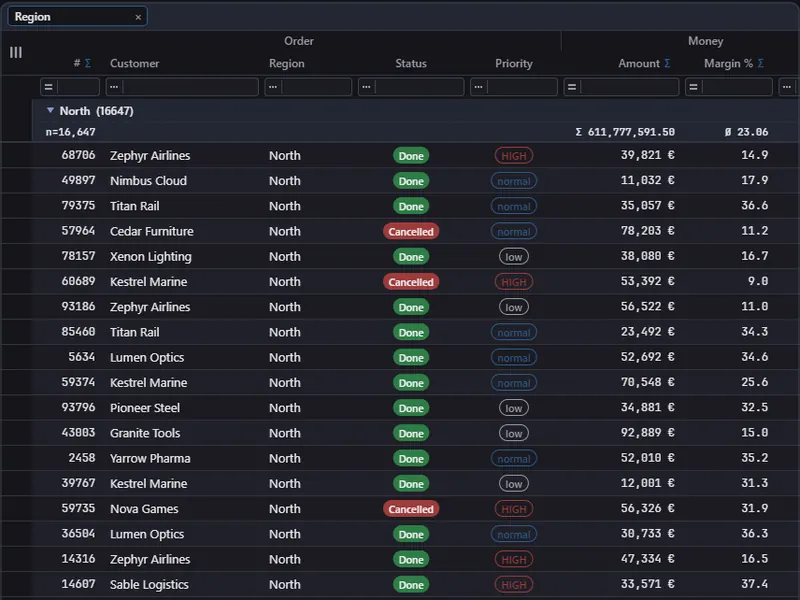
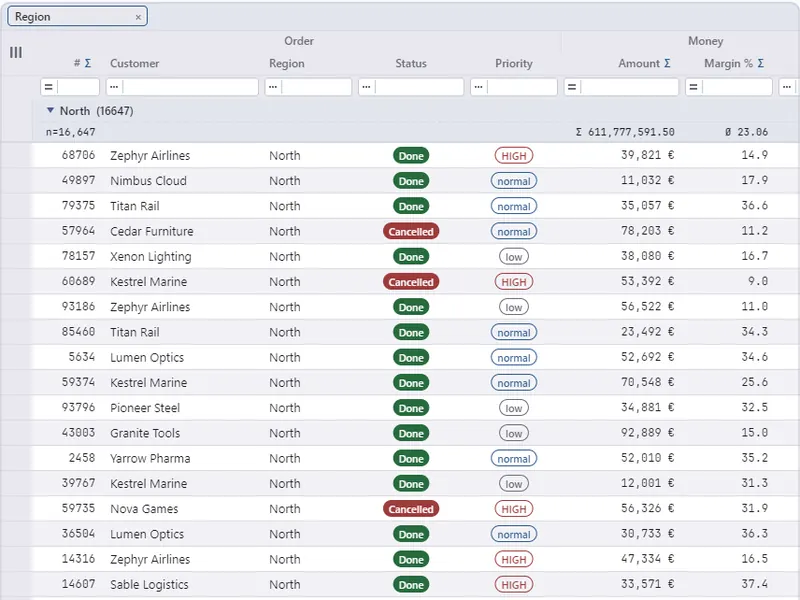
ArionUI.Grouping · free during the preview, also commerciallyRows grouped by one or more columns, with a group band to drag captions onto, collapsible group rows and subtotals in their headers and footers.
Install and enable
dotnet add package ArionUI.Grouping --prereleaseGrouping is switched on per view with EnableGrouping(). Columns offer themselves with .WithGrouping(), which is part of the open engine and does nothing until the call is made.
var view = new GridView<Order>(
    [
        Column.Text<Order>("Region", o => o.Region).WithKey("region").WithGrouping(),
        Column.Text<Order>("Customer", o => o.Customer).WithKey("customer").WithGrouping(),
        TypedColumn.Date<Order>("Booked", o => o.Booked).WithKey("booked")
                   .WithGrouping(o => o.Booked.Year, year => $"{year}"),   // by year
        TypedColumn.Number<Order>("Amount", o => (double)o.Amount, format: "N2").WithKey("amount")
                   .Summary(AggregateFn.Sum, o => o.Amount),
    ],
    new ListItemsSource<Order>(orders))
    .AsDataGrid()          // includes the group band and group subtotals
    .EnableGrouping();     // the Pro call: without it nothing groups
WithGrouping(key, label) takes an optional key and label. Without them the column's sort key groups; with them a column can group by something coarser than it shows — a year for a date, a range for an amount.
What the user does
- Drag a column caption into the group band above the header to group by it; drag more for further levels, drag the chips to change the order of the levels, and remove one with the mark at its right end.
- Click the chevron of a group row, or press Space on it, to fold it. The group headers of the rows in view stay pinned at the top while scrolling.
- F6 reaches the group band from the keyboard.
From code
int region = view.ColumnIdOfKey("region");
int customer = view.ColumnIdOfKey("customer");

view.GroupByColumn(region);                 // first level
view.GroupByColumn(customer);               // second level
view.MoveGroup(customer, 0);                // customer becomes the outer level
view.RemoveGroup(region);
bool grouped = view.HasGrouping;
view.ClearGrouping();
GroupedColumns lists the grouped element ids in order; ToggleFirstGroup() folds or unfolds the first group.
Subtotals and options
A column's .Summary(…) serves the grand-total footer and the group rollup with the same arithmetic, so the two cannot disagree. Group aggregates that do not belong to a column go into the view's groupAggregates parameter (see Views).
view.WithGroupPanel(height: 34)                         // the band to drop captions on
    .WithGroupSummaries(header: true, footer: false)    // subtotals in the group header only
    .WithGroupColumnWidth(24);                          // indent per level
grid.CanUserGroupColumns = false;                       // grouping by code only
AsDataGrid() already switches on the group band and subtotals in group headers and footers; each part takes space only once a column is groupable or declares a summary. The group band's hint text is German by default: GroupingUiText.English(), see Localisation.
PDF and print show every group expanded, headers and all; XLSX keeps the groups as an Excel outline; CSV contains the data rows only. A saved layout carries the grouping.